
XServer Live OS: a rescue system that knows what to do

The server didn't come back up after an update. You boot a rescue image and get a command prompt and hundreds of utilities. Which one do you run first? Where is the installed system anyway: on RAID, on LVM, on which of the disks? And why won't it boot: GRUB, an initramfs without the right driver, a typo in fstab?
A regular rescue image gives you tools, not answers. XServer Live OS works the other way round: right after it boots, it shows a menu where every action is a single item. Diagnostics tell you what is stopping the boot. Rescue opens a shell inside your system with one keypress. And the installed OS can be started straight from the disk, without rebooting the server.
Plenty of tools, no answer
SystemRescue, Ubuntu Live, WinPE-based builds are good toolkits. They have everything you need to fix a system if you already know what broke. The trouble is that most of the time you don't.
Investigating a server that won't boot with a regular rescue image goes like this:
- Find the disks and figure out what's on them: assemble the software RAID, activate LVM, find the root partition.
- Mount it without breaking anything, and then /boot and the EFI partition too.
- Read grub.cfg, fstab and the list of kernels, and check the UUIDs against what is actually on the disks.
- Check whether the initramfs contains the driver for the controller the root lives on.
- To repair it, bind-mount /dev, /proc and /sys and chroot, not forgetting efivars, or grub-install won't work on UEFI.
Every step is a dozen commands and a chance to make a mistake. An experienced engineer gets through it quickly, but someone who does this once a year can lose hours. We have walked this path on customers' servers many times ourselves, and in the end we built it into a single system.
What XServer Live OS is
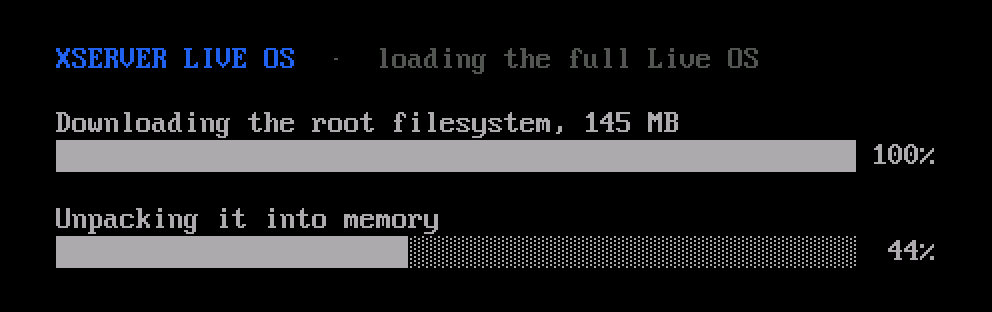
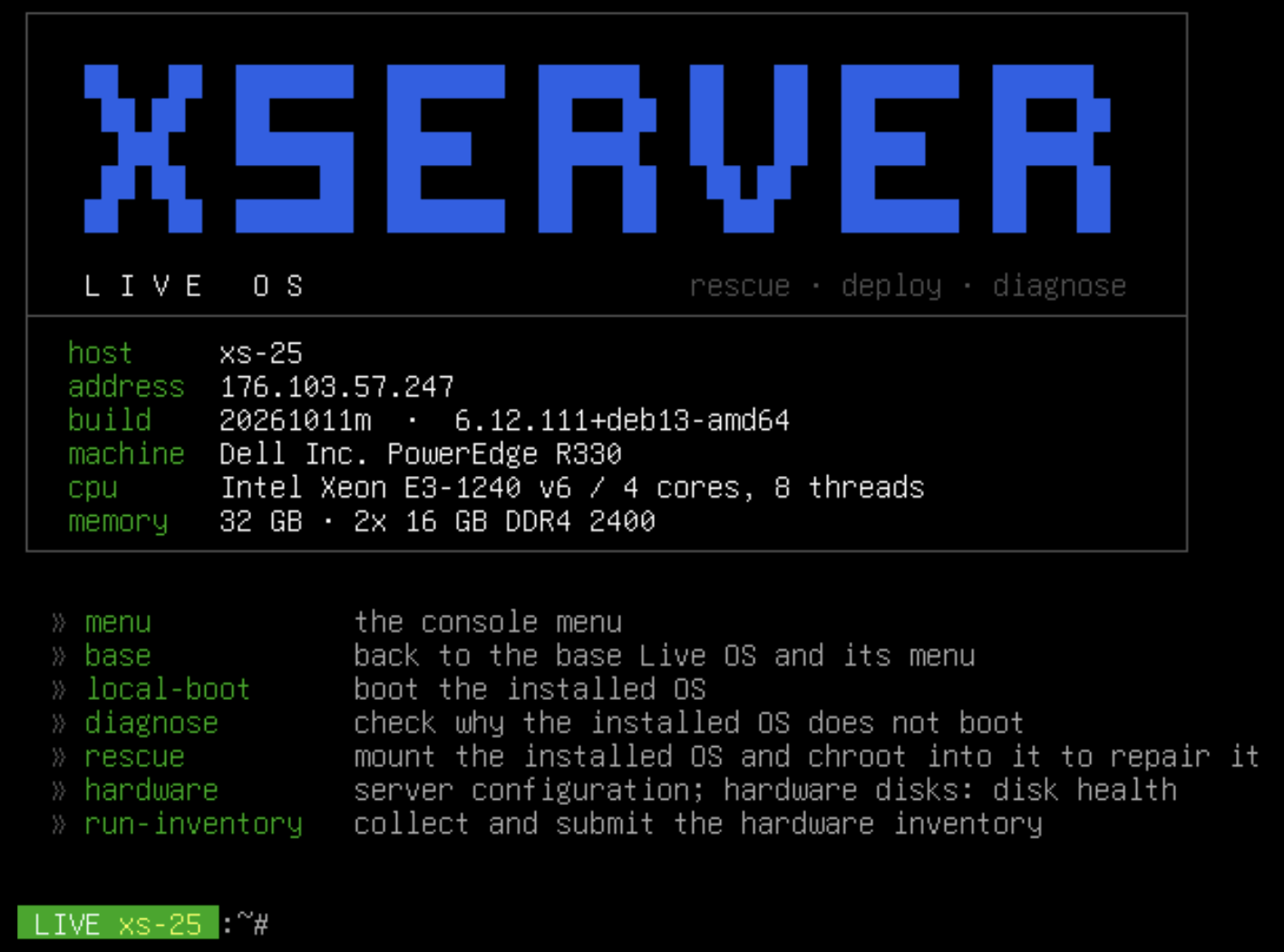
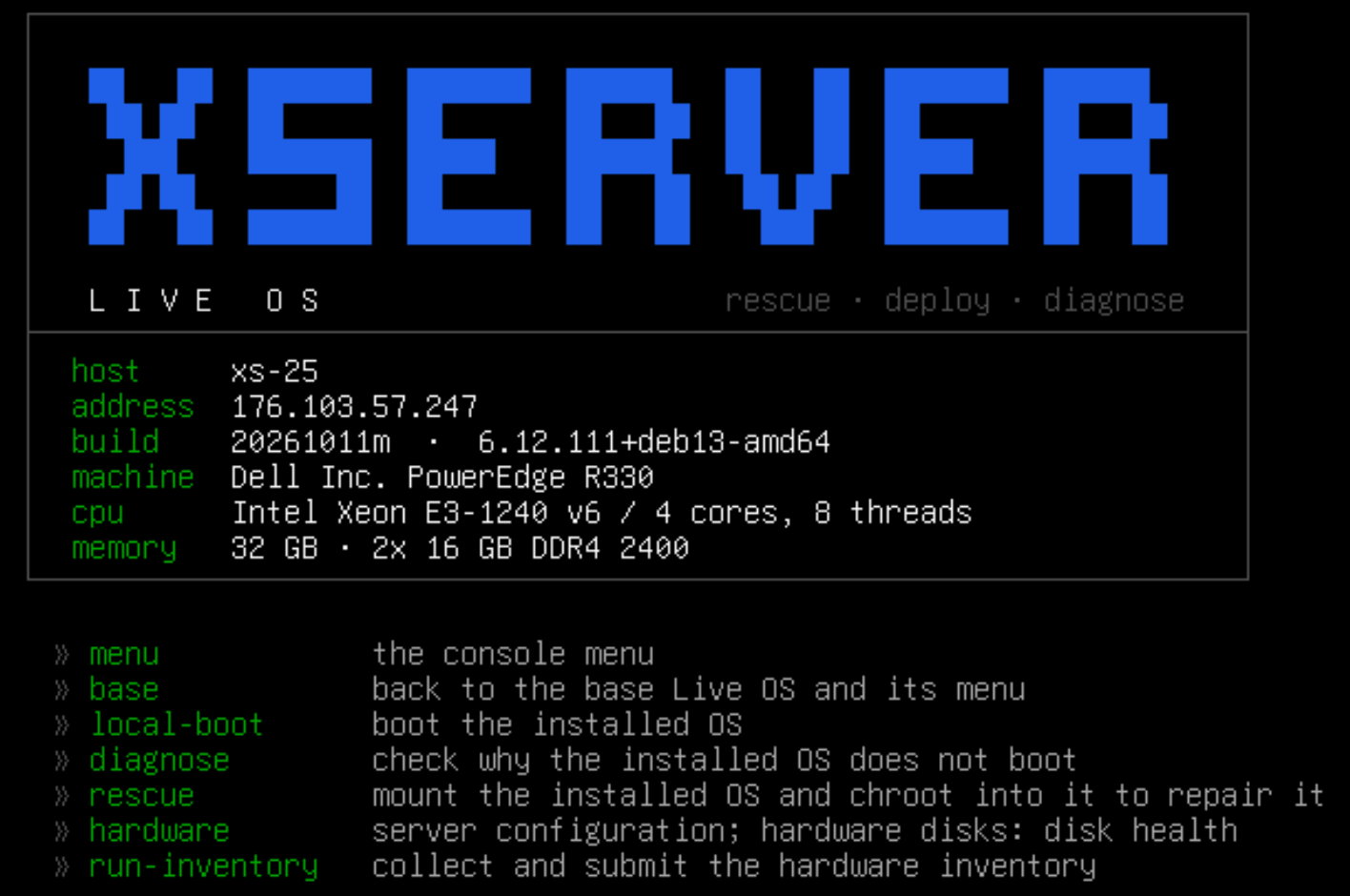
XServer Live OS is a system for servicing a server that boots over the network and lives entirely in RAM. It writes nothing to the disks unless you ask it to. You start it from the control panel: just pick Live OS in the server's boot menu.
Live OS comes in two stages:
- Base Live OS is a small BusyBox system. It boots in seconds and opens a menu on the server's screen right away. It already has everything for diagnostics, repair and booting the installed OS.
- Full Live OS is Debian 13 with systemd and apt. About 150 MB is downloaded straight into memory from a single menu item. You need it when you run out of tools: to install a package, fix Windows or move a server.
You can switch between the stages as many times as you like without rebooting the server: the live command moves to the full one, base returns to the menu.
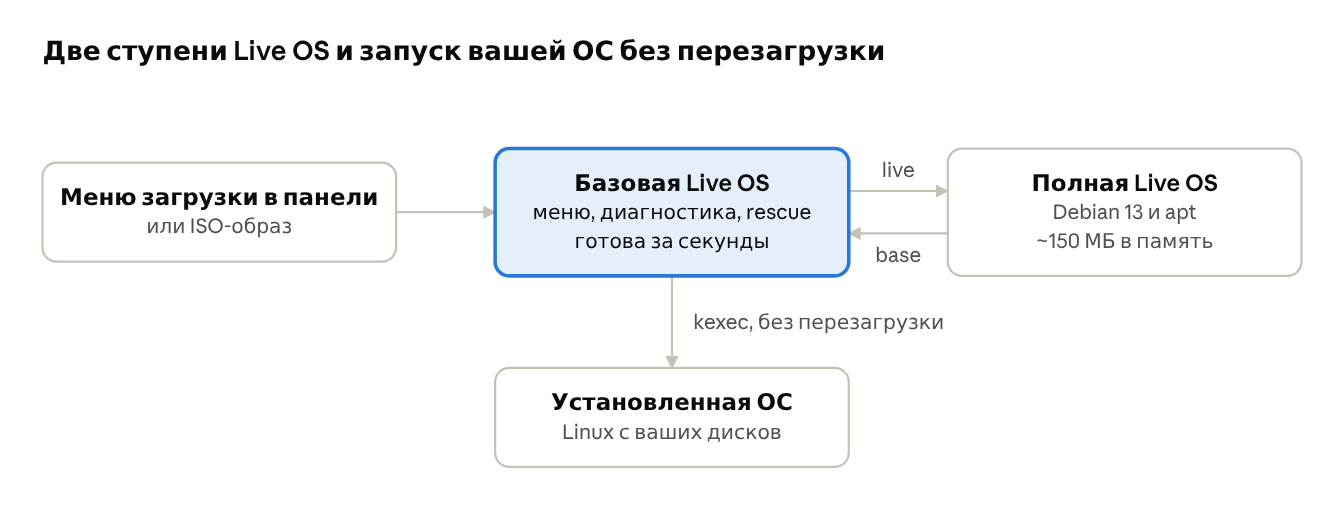
Work starts in the base Live OS: from there one command takes you to the full one, and one menu item starts your system from the disk.
The menu: everything important on one screen
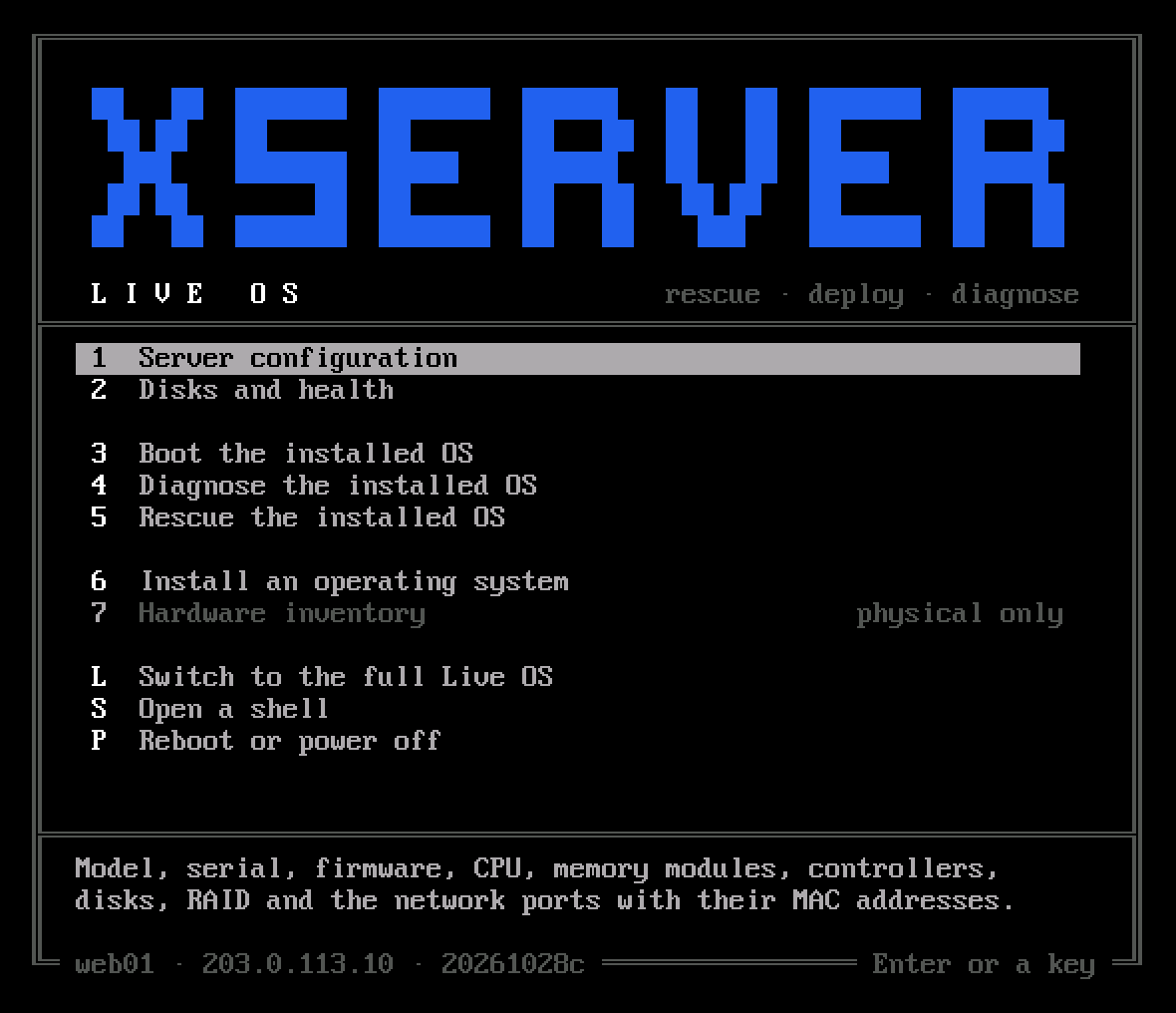
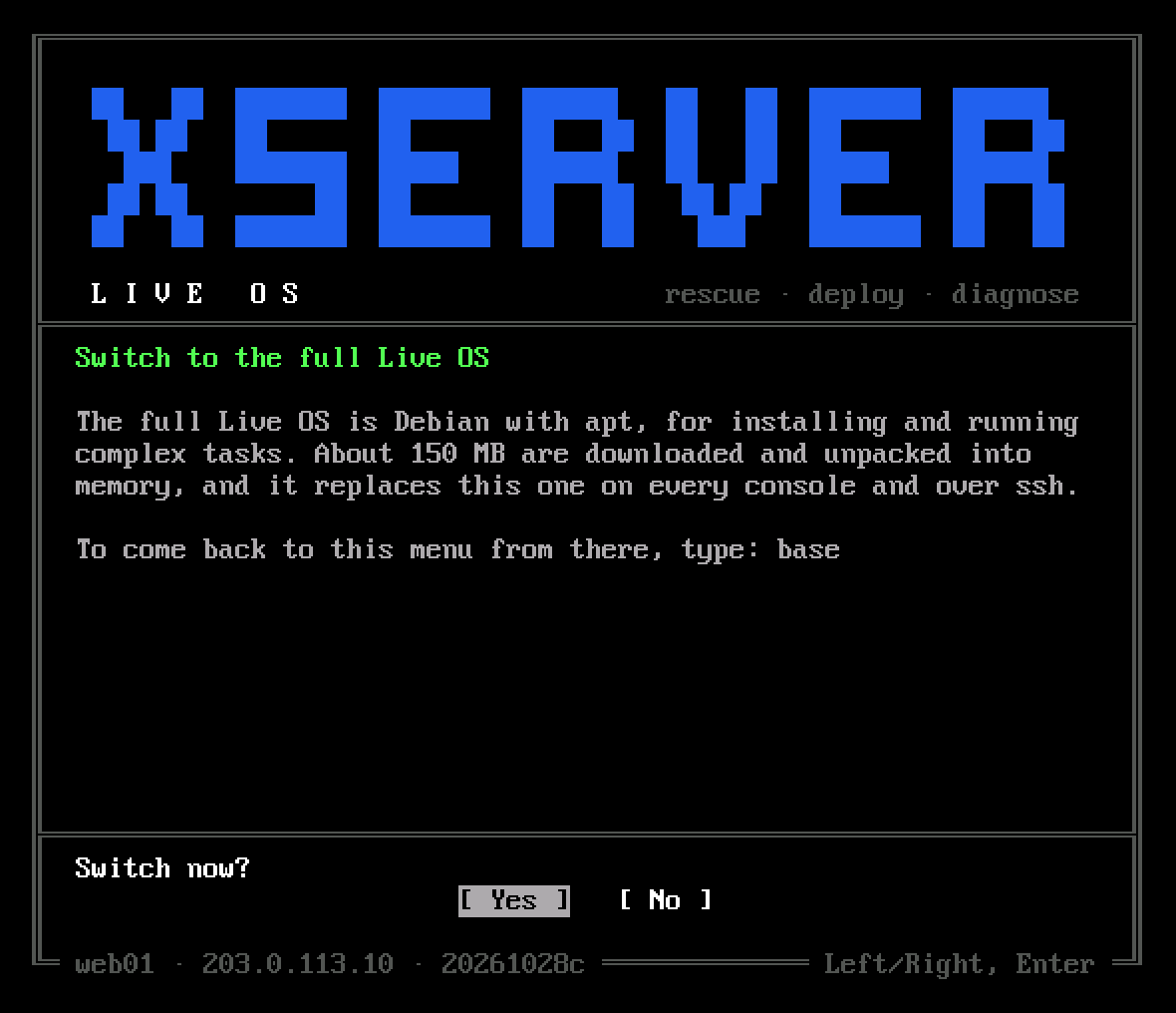
Instead of an empty command prompt, Live OS starts with a menu. Each item is chosen with a single key, and two lines below it say exactly what will happen. Anything that can change something asks for confirmation with Yes and No buttons.
| Key | Item | What it does |
|---|---|---|
| 1 | Server configuration | Model, serial number, CPU, memory modules, controllers, disks, network ports with MAC addresses |
| 2 | Disks and health | Every disk, including those behind a RAID controller: health, temperature, power-on time |
| 3 | Boot the installed OS | Finds the system on the disks and starts it without a reboot |
| 4 | Diagnose the installed OS | Explains why the system may not boot, without changing anything |
| 5 | Rescue the installed OS | Opens a shell inside the installed system (chroot) |
| 6 | Install an operating system | Installs the OS chosen in the panel via a QR code |
| L | Switch to the full Live OS | Loads the full Debian-based Live OS |
| S | Open a shell | Opens a command prompt with the list of Live OS commands |
| P | Reboot or power off | Reboots or powers off the server |
While you are reading the menu, Live OS is already collecting hardware details in the background. That's why the first two items usually open instantly, without waiting for the disks to be polled.
Diagnostics: what broke and what to do about it
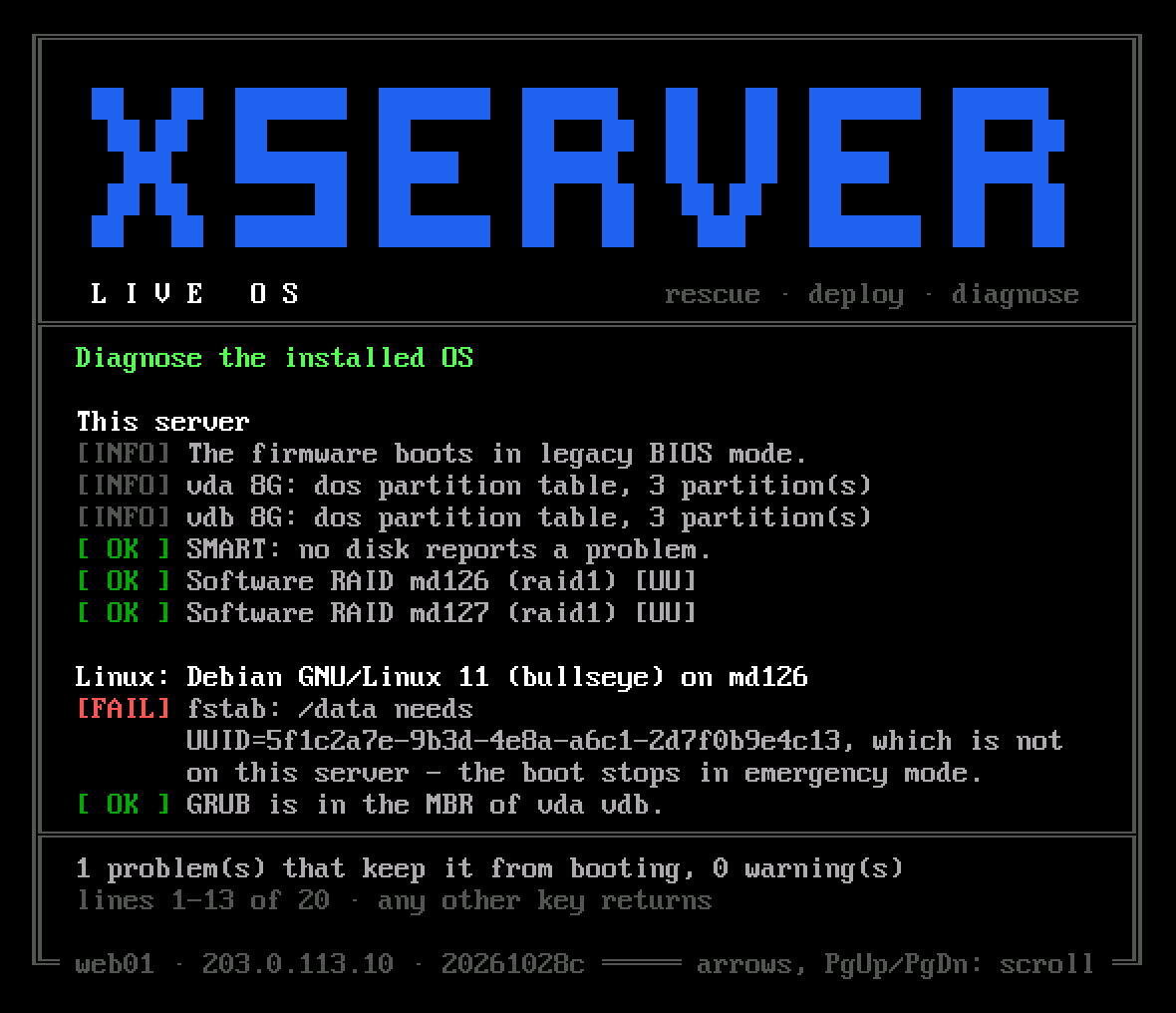
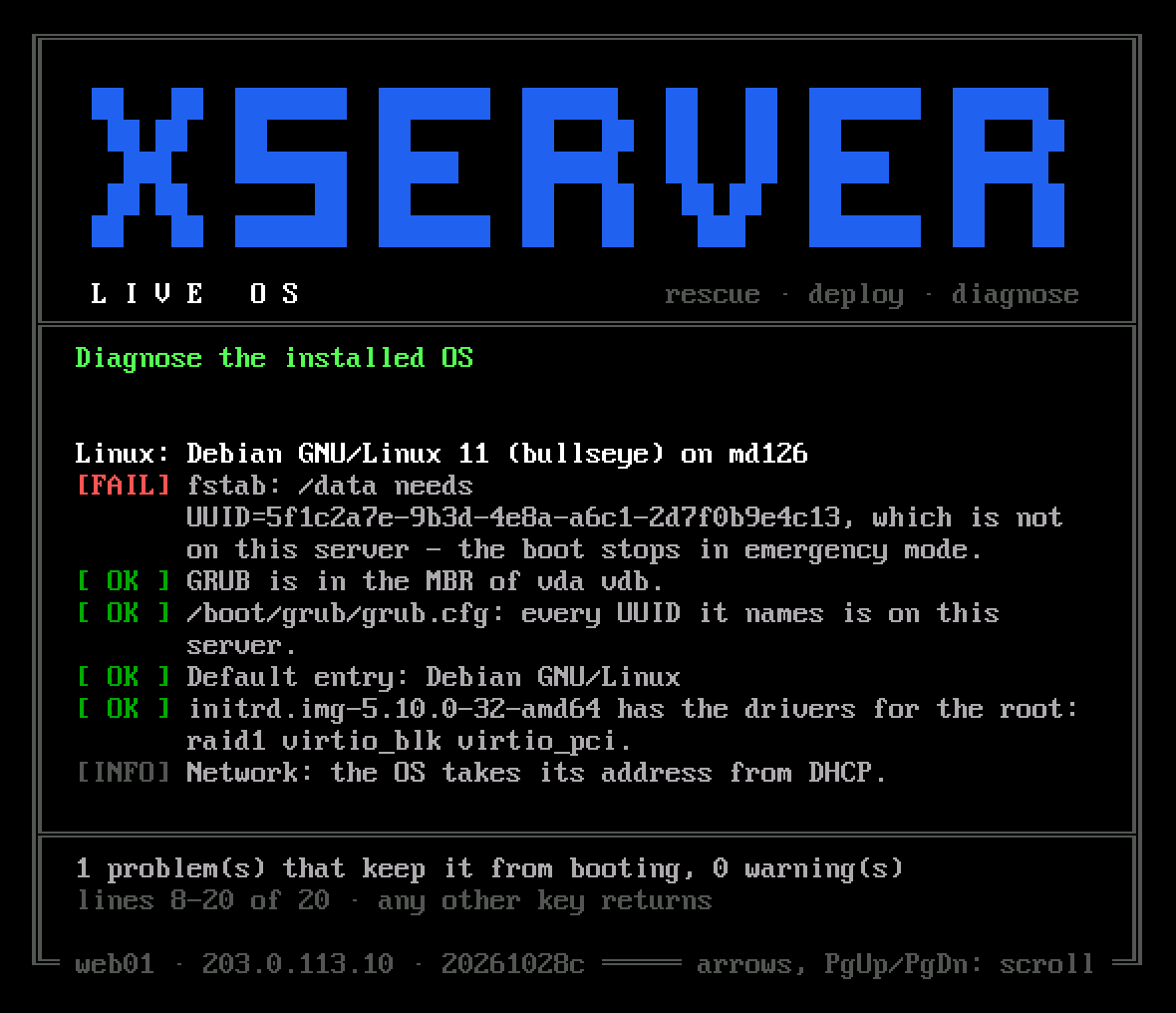
Diagnose checks everything between powering on the server and a running system, and gives a verdict for each item: OK, WARN (worth a look) or FAIL (this is what stops the boot). Next to each problem it says how to fix it.
Diagnostics only read. File systems are mounted without replaying the journal, the software RAID is assembled read-only, and everything is unmounted when it finishes. You can run it as many times as you like, with no risk.
For Linux it checks:
- the installed system's boot mode against the firmware mode (BIOS or UEFI);
- GRUB in the MBR or the boot loader on the EFI partition and its entry in the firmware;
- grub.cfg and fstab: whether every UUID they refer to is present on the server;
- the kernels, their initramfs and modules, and whether the initramfs has the driver for the controller the root lives on;
- the state of the file systems and free space;
- the system's network settings against the server's ports and the address assigned to it.
For Windows: the boot code and active partition or bootmgfw.efi with its firmware entry, where the BCD points, whether Windows starts the driver for its disk controller, the NTFS dirty flag and hibernation (Fast Startup). For the server itself: whether the disks are visible, their SMART health and the state of the software RAID.
Here is the report for a system that was moved to a server with a different RAID controller (an example):
Linux: Debian GNU/Linux 12 (bookworm) on sda2
[ OK ] UEFI loader on the ESP (sda1): grubx64.efi, shimx64.efi.
[ OK ] fstab: all 3 entries are on this server.
[ OK ] Default entry: Debian GNU/Linux
[FAIL] initrd.img-6.1.0-26-amd64 lacks megaraid_sas: the kernel will not
       find the root disk. Rebuild it with the driver (rescue).

Summary: 1 problem(s) that keep it from booting, 0 warning(s)
Without diagnostics, a system like this simply stops during boot with a vague error about the root partition. With it, the cause and the fix are clear right away: go into rescue and rebuild the initramfs with the right driver.
Repair in one keypress
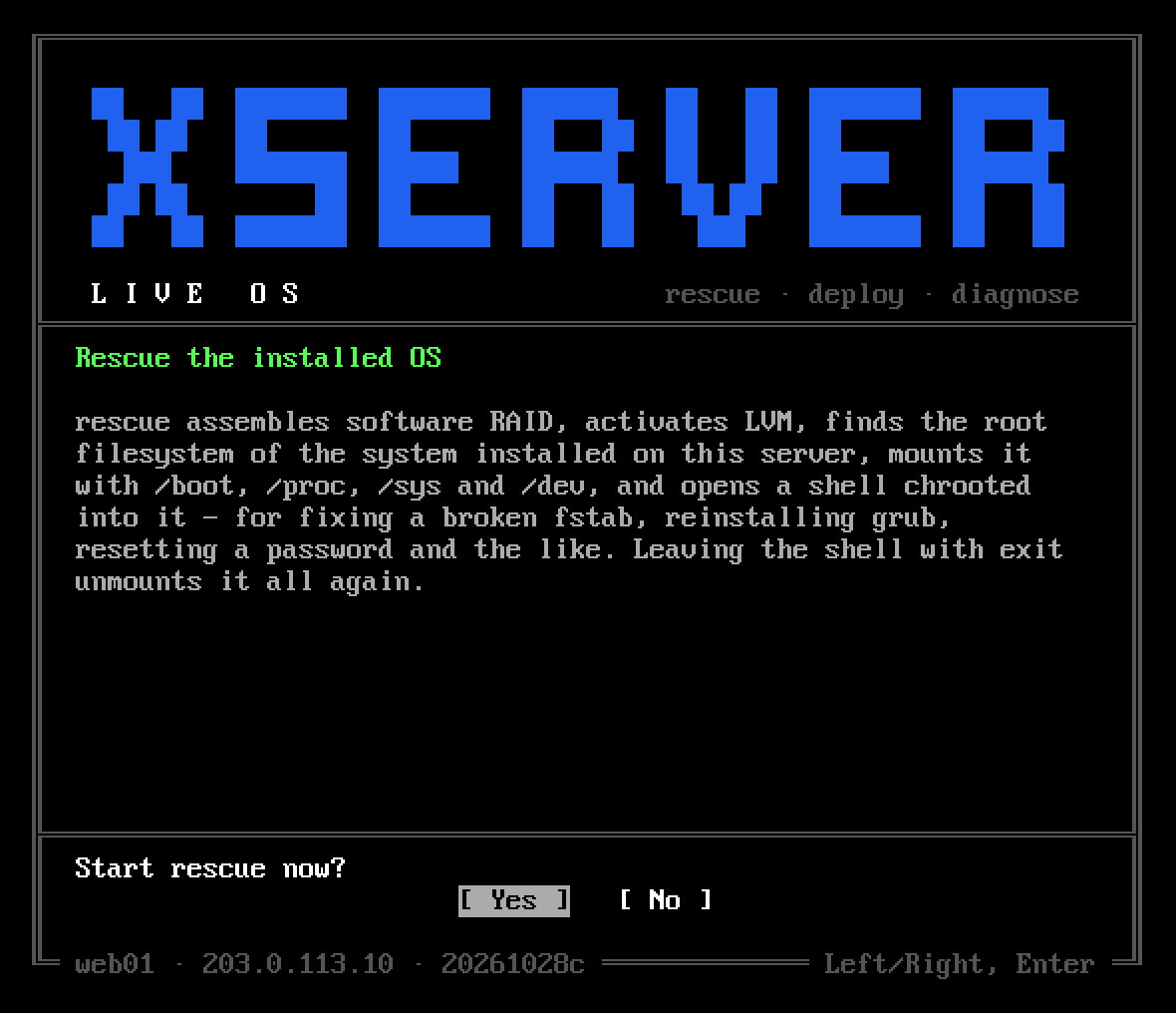
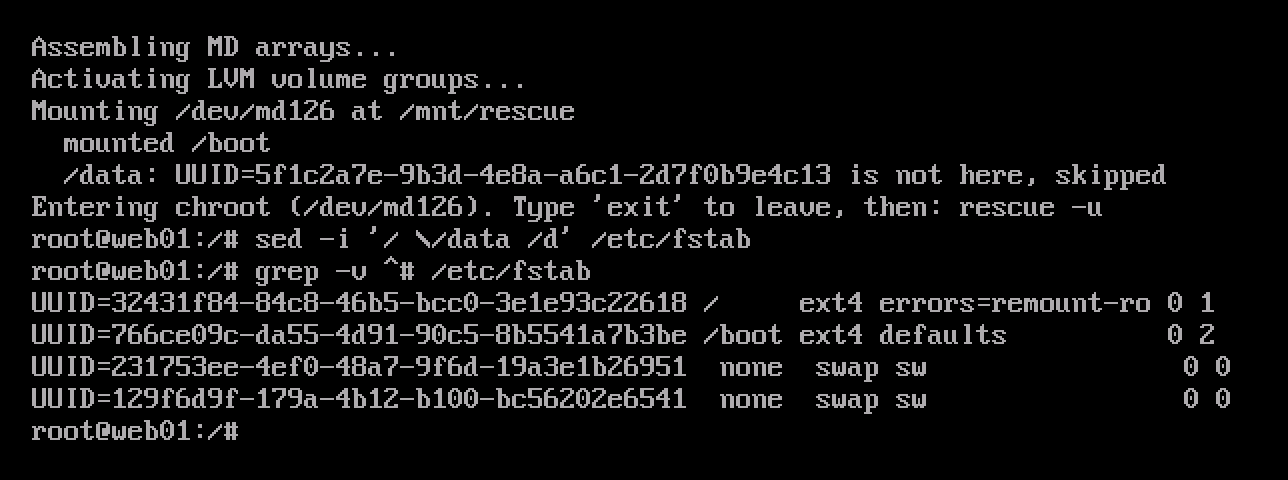
Rescue does all the preparation itself and opens a shell already inside your system. It:
- Assembles the software RAID, even if the array was created on another machine, and activates LVM.
- Finds the root file system: ext4, XFS or Btrfs, including in a subvolume.
- Mounts it together with the other partitions from fstab: /boot and the EFI partition.
- Binds /dev, /proc, /sys and the UEFI variables so that grub-install and efibootmgr work inside.
- Opens a shell in the chroot.
From there you work with your system as usual: reinstall GRUB, rebuild the initramfs, edit fstab or reset a password. After exit, Live OS unmounts everything in the right order so the changes are safely written to disk.
If the base Live OS can't handle a file system, it offers to switch to the full one, where Rescue starts on its own on the same console. For Windows, the full Live OS has a separate win-rescue utility. Without starting Windows, it fixes the typical causes of INACCESSIBLE_BOOT_DEVICE, a damaged BCD and stuck updates, and backs up the registry before any change.
Booting the installed OS without a reboot
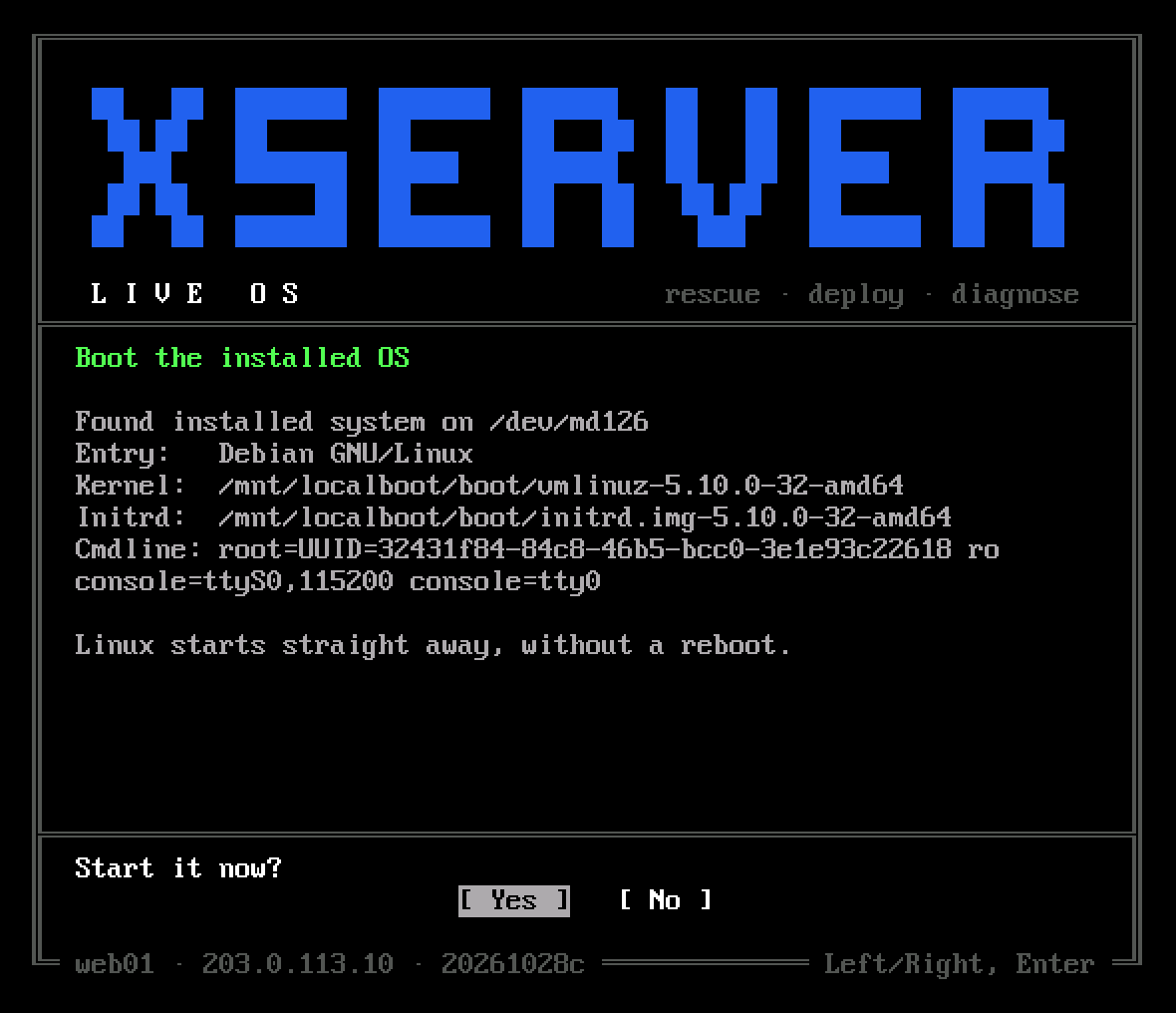
Boot the installed OS finds Linux on the disks and starts it straight from Live OS, without rebooting the server. It reads the GRUB configuration, picks the same entry GRUB itself would pick and starts its kernel with the same parameters via kexec. Before starting, the menu shows exactly what will boot: the entry, the kernel, the initramfs and the command line.
This helps in two situations:
- Only the boot loader is broken. The system is intact, but GRUB or the firmware entry is lost. You can bring the server back into service right away and fix the boot loader later, from the running system.
- Maintenance is done. Instead of a reboot with a long hardware check, which takes minutes on servers, the system starts immediately.
The full Live OS returns to the base one the same way, with the base command. Windows can't be started like this: only the firmware can start it. If there is Windows on the disks, Live OS will say so and offer a reboot.
Hardware and disks without special utilities
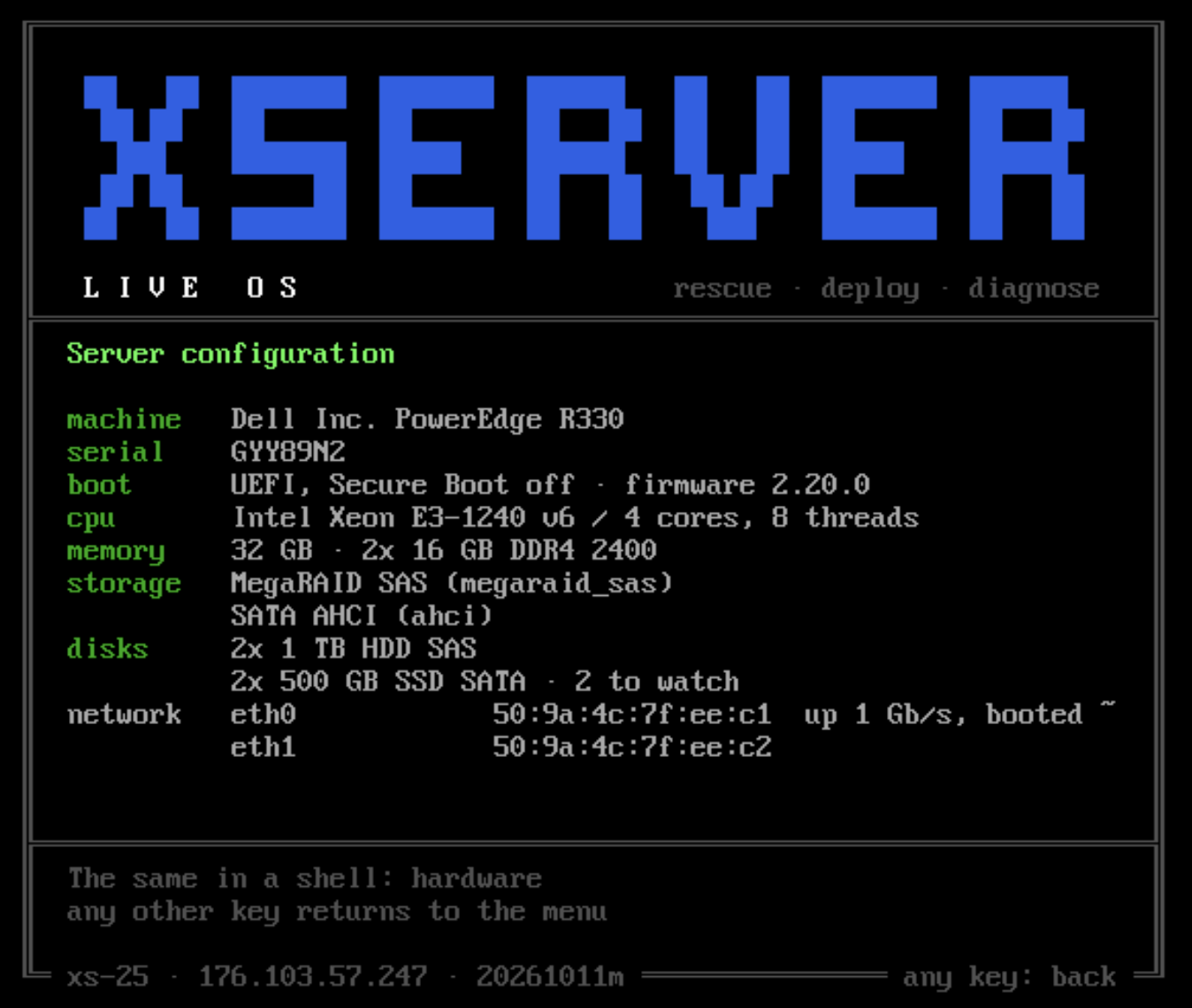
Server configuration shows the server's configuration on one screen. Memory is described the way it is ordered: “32 GB · 2x 16 GB DDR4 2400”. For each network port you get its MAC address, for controllers the model and the configured RAID volumes. On a virtual server it's shorter: cores, amount of memory and disks.
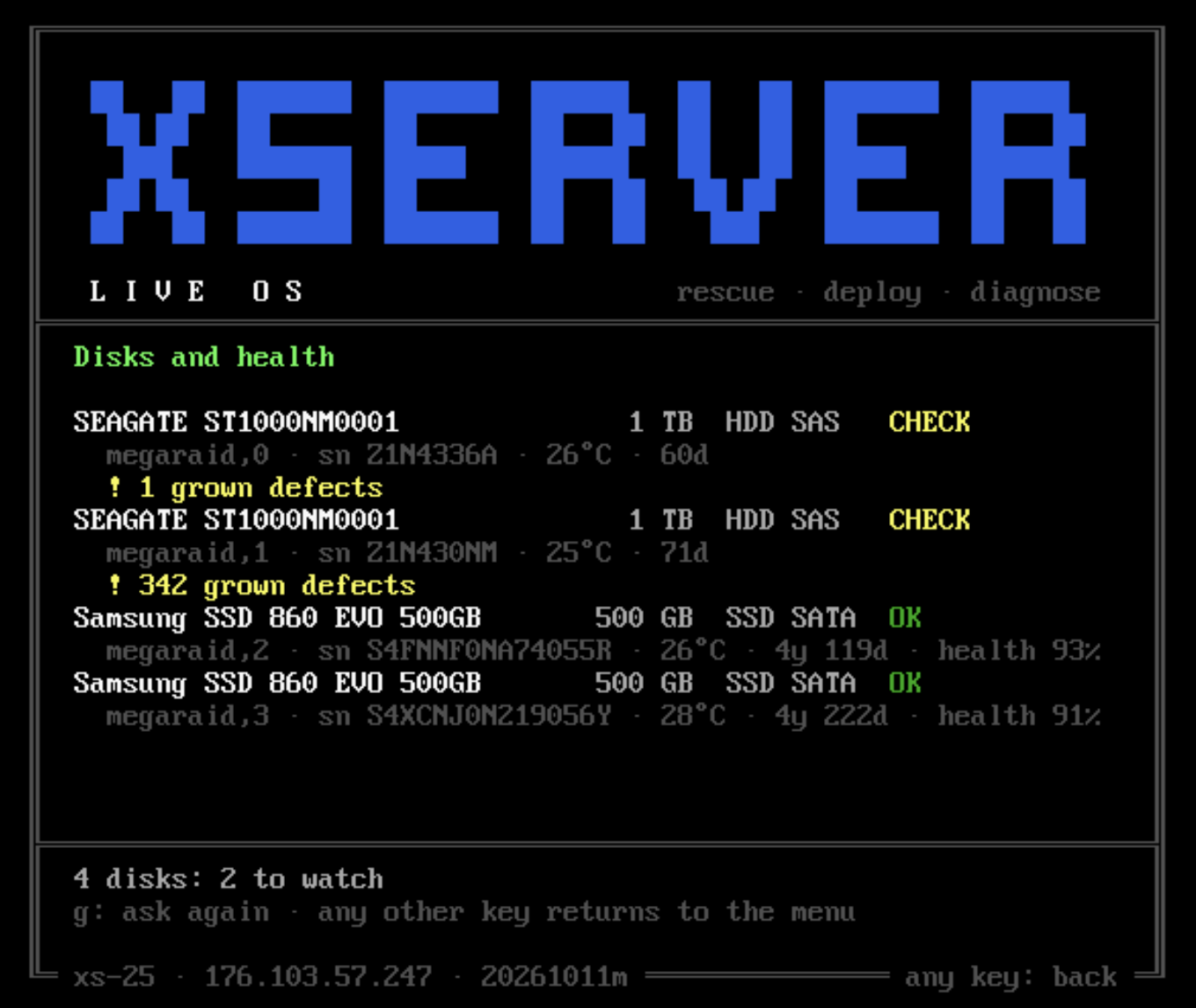
Disks and health covers every disk, including the ones hidden behind a Dell PERC or HP Smart Array hardware RAID controller. Normally this takes vendor utilities; here it doesn't. For each disk you see the model, capacity, type (HDD, SSD, NVMe), temperature and two numbers that make sense without decoding SMART:
- health in percent: “health 93%” instead of raw wear attributes;
- power-on time in years and days: “4y 119d” instead of 37,896 hours.
A worn-out SSD and a disk that reports a problem itself are flagged right away. Diagnostics take the same data into account: sometimes a system won't boot simply because a disk is dying.
Installing an OS via QR code
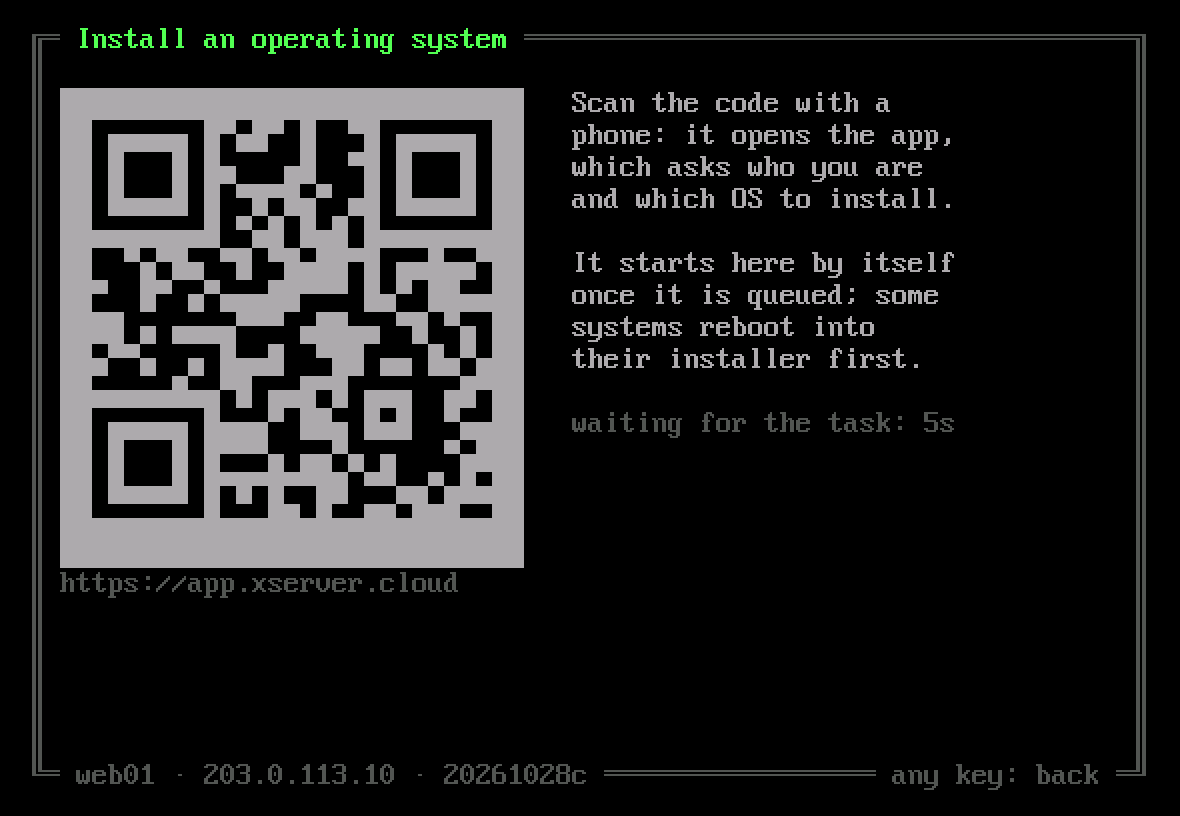
You can reinstall the system without leaving the server console. Install an operating system shows a QR code right in the menu window:
- You scan the code with your phone, and the installation dialog opens in the panel for this exact server.
- You choose the system and its settings.
- Live OS picks up the task within a few seconds and runs it right away.
If you are connected over SSH, there is a clickable link next to the QR code. Our engineers use the same QR code approach to run hardware inventory on new servers.
For those used to the console
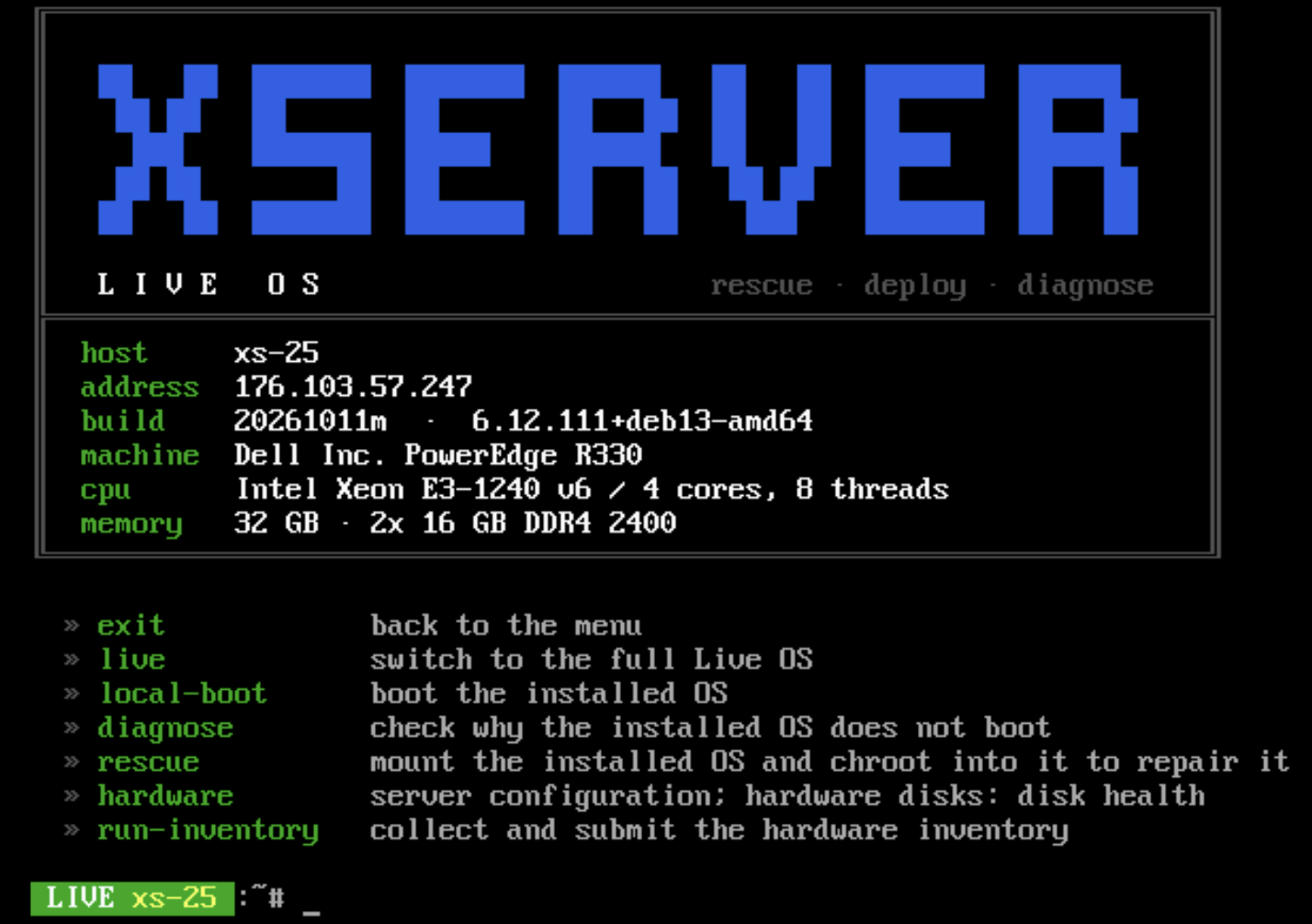
The menu doesn't lock anything away. The S key opens a shell, and its header lists the Live OS commands right away. The same header greets you when you log in over SSH, in both the base and the full Live OS:
  menu        the console menu
  live        switch to the full Live OS
  local-boot  boot the installed OS
  diagnose    check why the installed OS does not boot
  rescue      mount the installed OS and chroot into it to repair it
  hardware    server configuration; hardware disks: disk health
Every menu item is an ordinary command. You can run it by hand, for example pass rescue the partition you need, or see what local-boot -n would boot without starting anything.
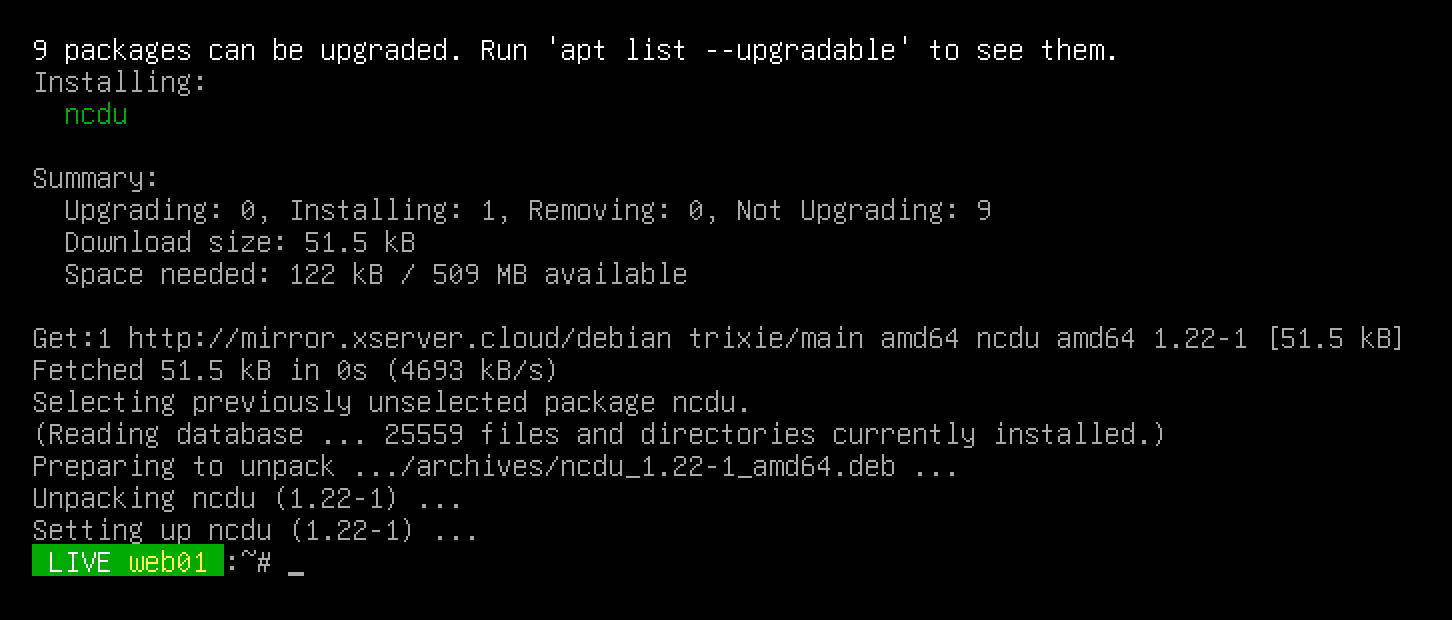
The full Live OS gives you all of Debian: a missing tool is installed with apt straight into memory. Unlike “for every occasion” images, you don't have to download gigabytes of utilities in advance: you install only what you need right now.
How Live OS differs from a regular rescue image
A regular rescue image is a toolkit for someone who knows what to do. Live OS does by itself what an engineer repeats on every server that won't boot.
| Task | Regular rescue image | XServer Live OS |
|---|---|---|
| Boot it on the server | Download an ISO and attach it to the server | Pick Live OS in the boot menu in the panel |
| Get started | An empty command prompt or a desktop | A menu that describes every action |
| Find out why the OS won't boot | By hand: logs, configs, the boot loader | Diagnostics with a verdict and a hint on what to do |
| Get into the system to fix it | RAID, LVM, mounting and chroot by hand | One menu item |
| Start the OS from the disk | A reboot and a hardware check | Immediately, without a reboot |
| Check disks behind a RAID controller | smartctl with the right flags or vendor utilities | Health and power-on time in the common list |
| Reinstall the OS | A separate installer image | A QR code in the menu |
| A missing tool | Only what the image already has | apt in the full Live OS |
SystemRescue and similar images remain a good choice for a home computer and for tasks that need a graphical interface. Live OS is built for servers: for the console, SSH and the moment when the service is down and every minute counts.
Not just for our servers
Live OS is the foundation for our other tools. It powers reloca.to, a utility that moves an installed Linux server to another machine over the network. Both machines run Live OS during the move, so nothing changes the old server's disks while they are being copied.
For servers outside our network there is an ISO image: xserver-live.iso, about 270 MB. It contains the same Live OS with drivers and firmware for third-party hardware:
- Hyper-V, Xen and VMware virtual machines;
- Realtek, Intel, Broadcom, QLogic and other network cards;
- booting from a CD, a USB stick or virtual media in BIOS and UEFI mode.
The whole image is read from the media, so no network is needed to boot. The address comes from DHCP by default, and a static one can be set in the boot loader menu. Secure Boot has to be turned off while you work with the image.
Where to start
If the server won't boot:
- In the control panel, pick Live OS in the server's boot menu and reboot it.
- Open the server console or connect over SSH and type
menu. - Run diagnostics (item 4). It changes nothing and shows exactly what's wrong.
- Fix the problem in rescue (item 5) or start the system from the disk right away (item 3).
If diagnostics show something unclear, send the report to support. It helps us understand what's going on faster than a screenshot of a stuck boot.