
How we upgraded the XServer Cloud Telegram bot


For a long time our Telegram bot was mostly a notification channel and a way to reach technical support. Over the past weeks it has become an account in your pocket: balance and invoices, a card for every server, a console screenshot and a traffic chart, reboot and network, snapshots, notifications with buttons, and a question to support in one tap right under the screenshot. Below is what exactly has appeared and how to turn it on.
Menu and balance
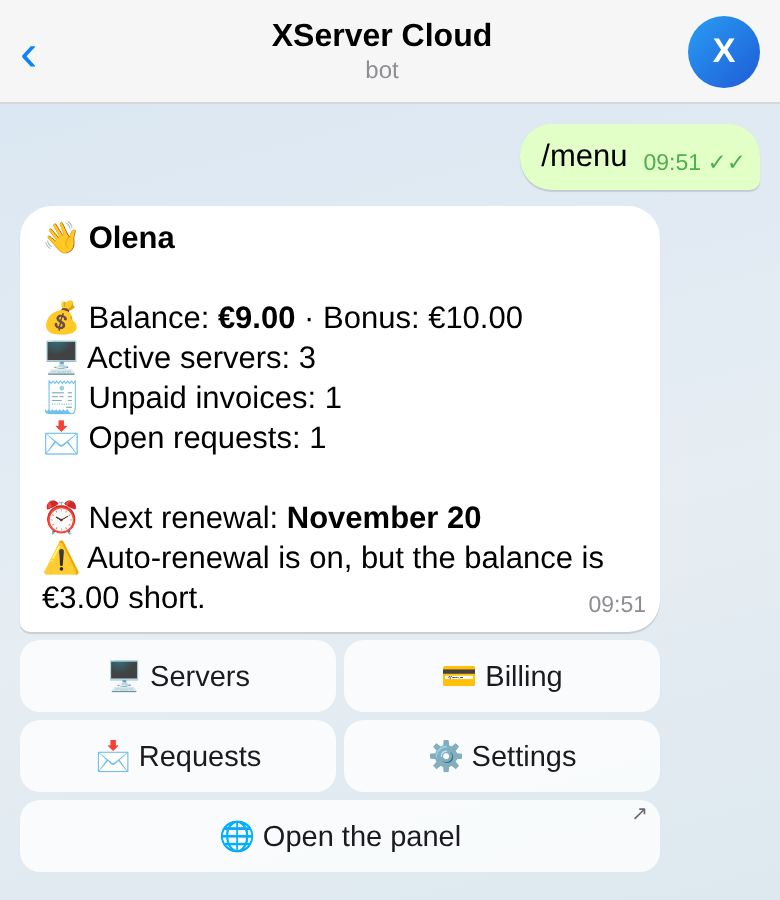
The /menu command shows your account on one screen: balance and bonus, how many servers are active, open requests, the next renewal and whether there is enough money for it. If there is not, a button takes you to a top-up for exactly the missing amount.
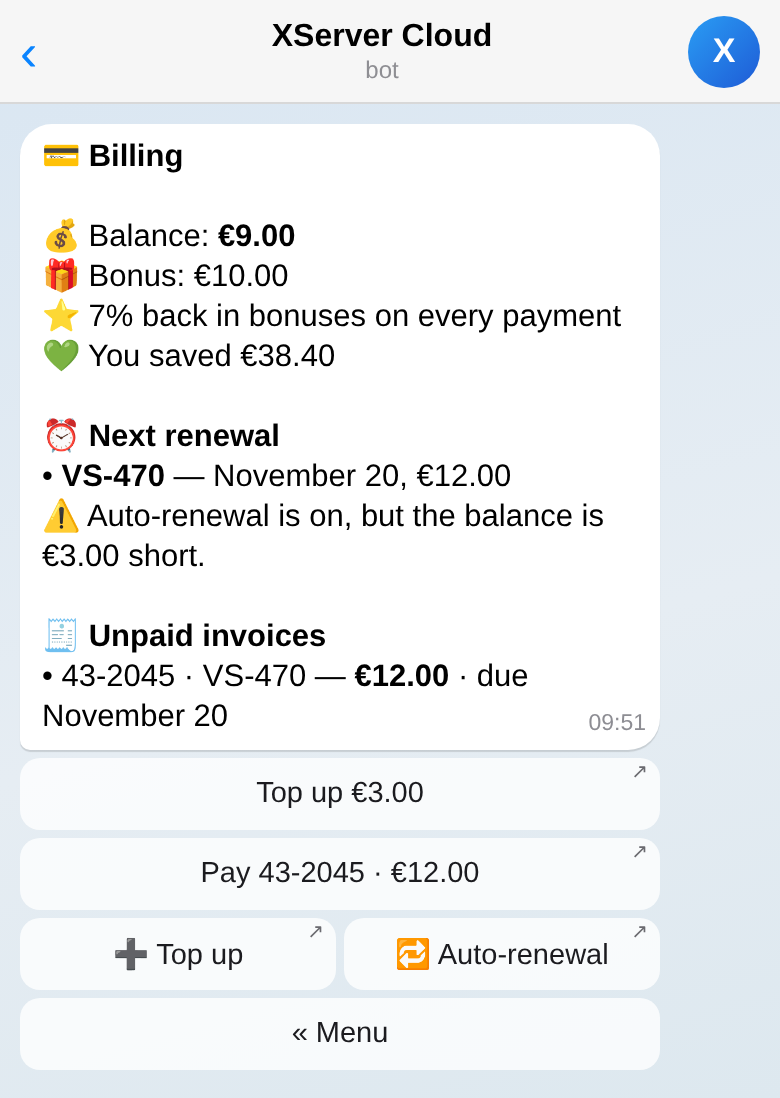
The Balance and invoices screen adds the volume discount, loyalty bonuses and unpaid invoices with payment links. Payments and renewals themselves happen in the panel: the bot opens the right page instead of asking for card details in a chat.
Servers: the list and the card
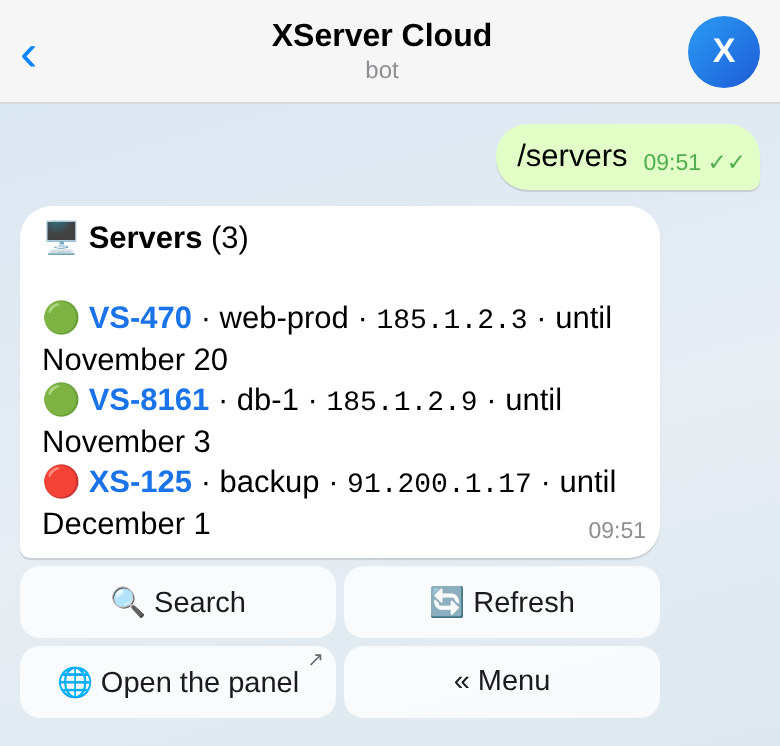
The server list shows the live power status, the IP and the paid-until date, 20 per page. A server's name opens its card.
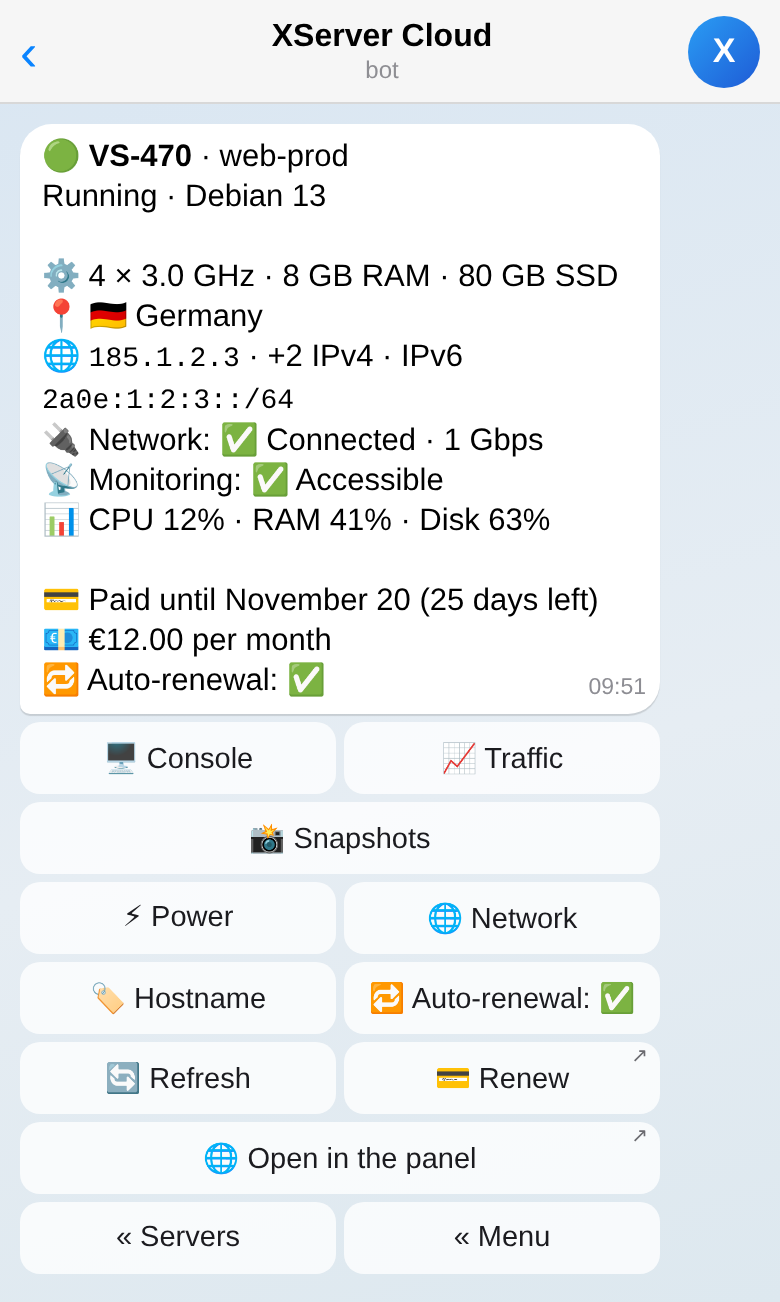
The card holds what the server page in the panel shows: OS, configuration, location, addresses, CPU, memory and disk usage, monitoring state, the date it is paid until, auto-renewal, the progress of an OS installation if one is running, and your note. If a server is blocked or suspended, the card says why.
The buttons under the card lead to the console screenshot, the traffic chart, management, renewal and the panel. Navigation happens in one message: the bot does not flood the chat with a new screen on every tap.
Console screenshot and traffic chart
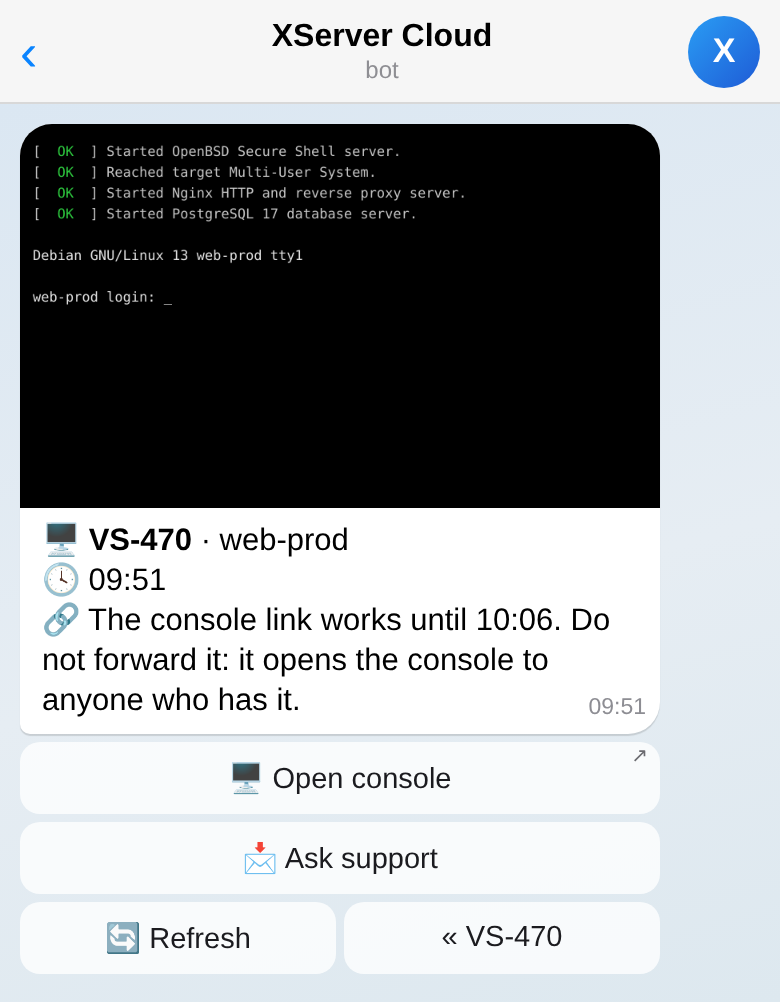
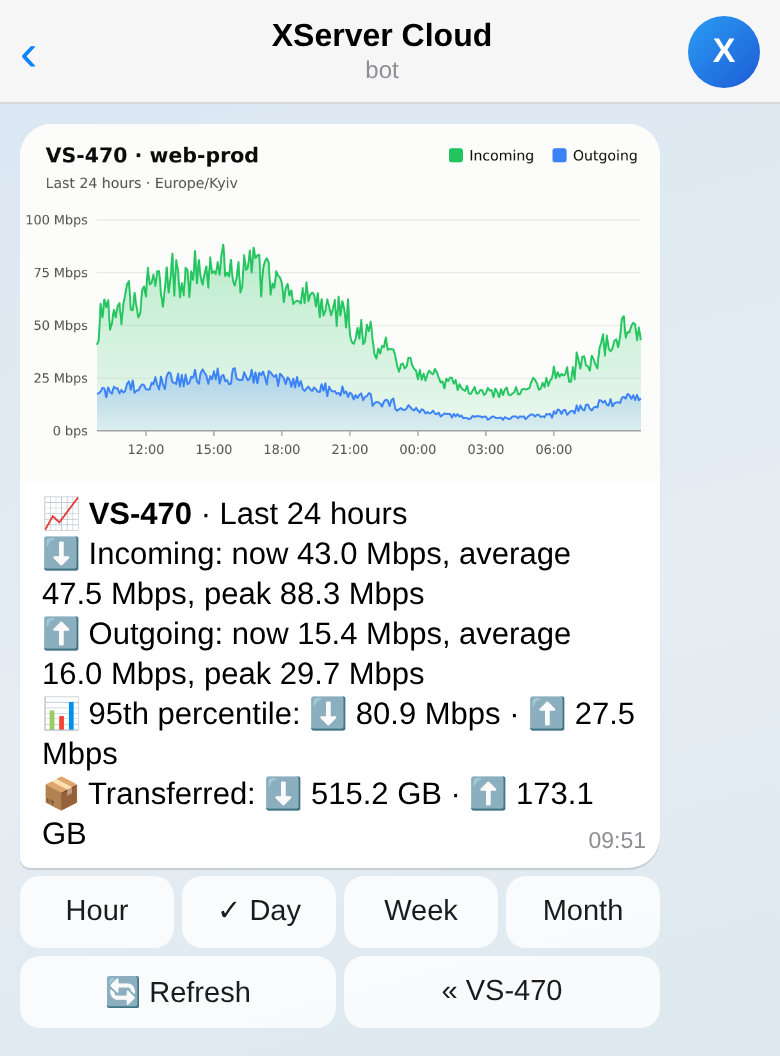
The Console button sends a live frame of the server's screen: from the hypervisor for a virtual machine, through the BMC for a dedicated one. If there is no screen right now, the bot sends the last saved frame and says when it was taken. Some older BMCs do not provide screenshots; the bot says so and offers the console in the panel.
Under the frame there is a Refresh button and, with management from Telegram turned on (more below), a link that opens the full console in the browser for 15 minutes, with no panel sign-in, straight from the phone.
The Traffic button draws a chart for the last hour, day, week or month. The caption gives the current, average and peak speed in both directions, the 95th percentile and the volume transferred. The time axis is in your time zone. A dedicated server with several ports lets you pick the port.
Management, only if you turned it on yourself
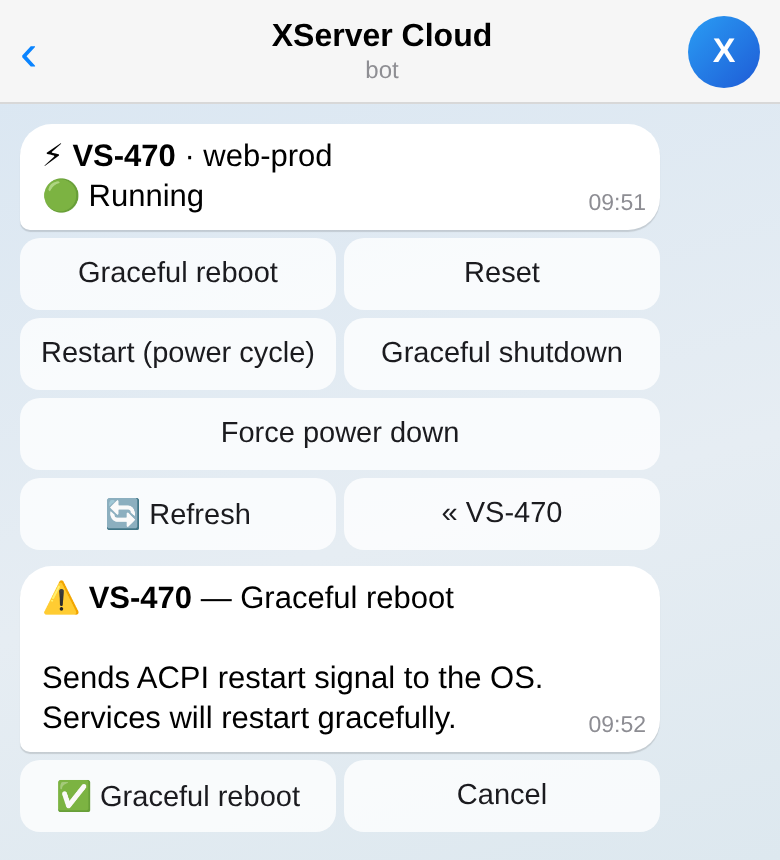
By default the bot only shows things. Reboot, power off, internet, PTR records, hostname and auto-renewal appear after you turn on Management from Telegram in the panel: Settings → Notifications, the Telegram card. You can turn it off in the panel or in the bot itself.
Anything that stops a server or takes it off the network, the bot asks about first with a one-time button that lives for two minutes and works only for the person who requested it. Turning a server or its internet on happens at once. For PTR and hostname the bot asks a question and you answer it with a reply to that message; an ordinary message in between goes to support, not into the server's settings.
OS reinstallation, restoring from a backup, reverting to a snapshot and cancelling a server stay in the panel; the bot gives a link to the right page.
Snapshots and backups
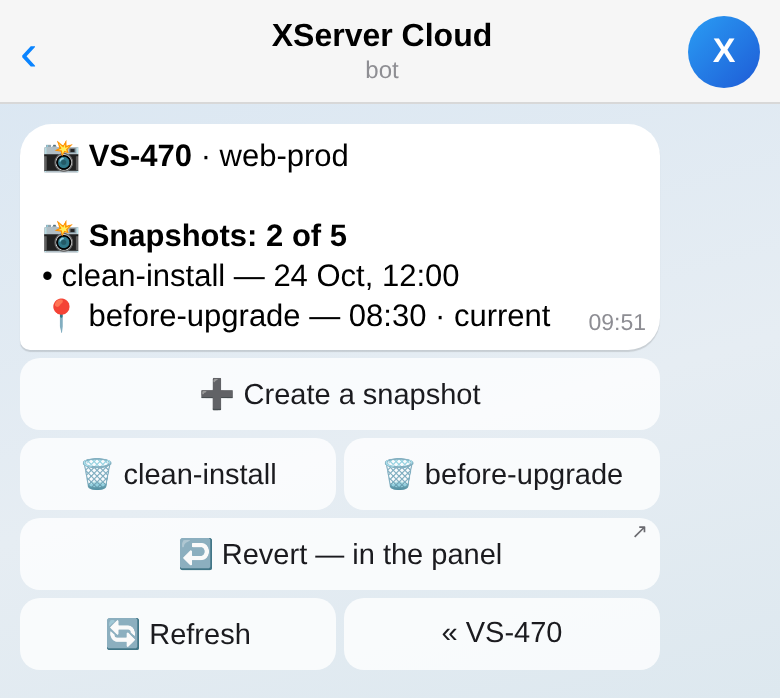
The Snapshots screen shows the virtual machine's snapshots straight from the hypervisor: the current one is marked, a running task is visible, the backup system's own snapshots carry a lock. With management on you can create a snapshot, up to five, with your own name or by date, and delete one you no longer need, with a confirmation. Reverting to a snapshot is done in the panel.
The Backups screen lists the restore points, newest first. The restore itself, like everything that changes data on the disk, starts in the panel with a second-factor confirmation.
Notifications with buttons
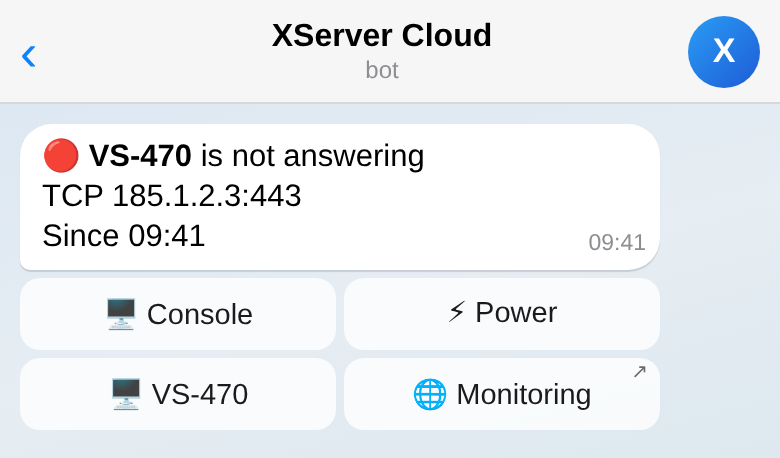
The bot's notifications now offer an action, not only the news. A server stopped answering: Console and Power right under the message (the second one with management on), the server card and its monitoring. A payment is due: Pay the invoice or Top up the needed amount, and Renew. A server is ready or the OS is installed: the card, the console and the panel. Access details never come to Telegram; they stay in the email.
Support replies arrive in the chat while Telegram is among your support notification channels. You can reply right in the bot: the message lands in the same request, with no "which one?" questions.
New: ask support right under the screenshot
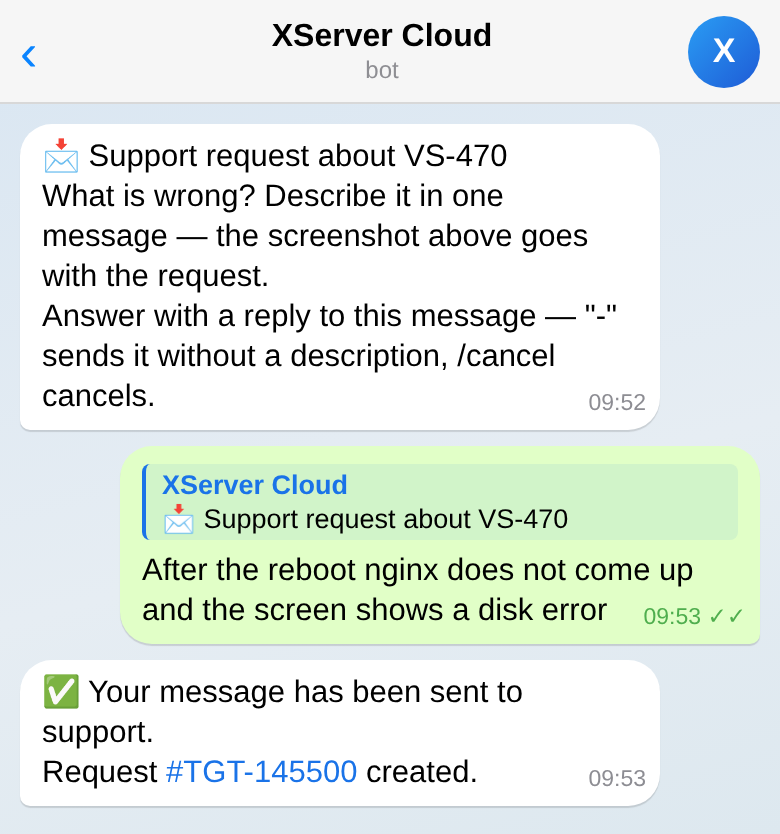
The most common situation: you look at the server's screen and do not understand what is wrong with it. Now there is an Ask support button under the screenshot. The bot asks one question, what happened, and your answer opens a new request that already carries that very frame, the server name and the time of the shot. Support sees what you saw, without "please send a screenshot".
You can answer with "-" and the request goes without a description, or reply with a photo of your own, which is attached too. From there the conversation goes on as usual: in the bot or in the panel.
Quick access
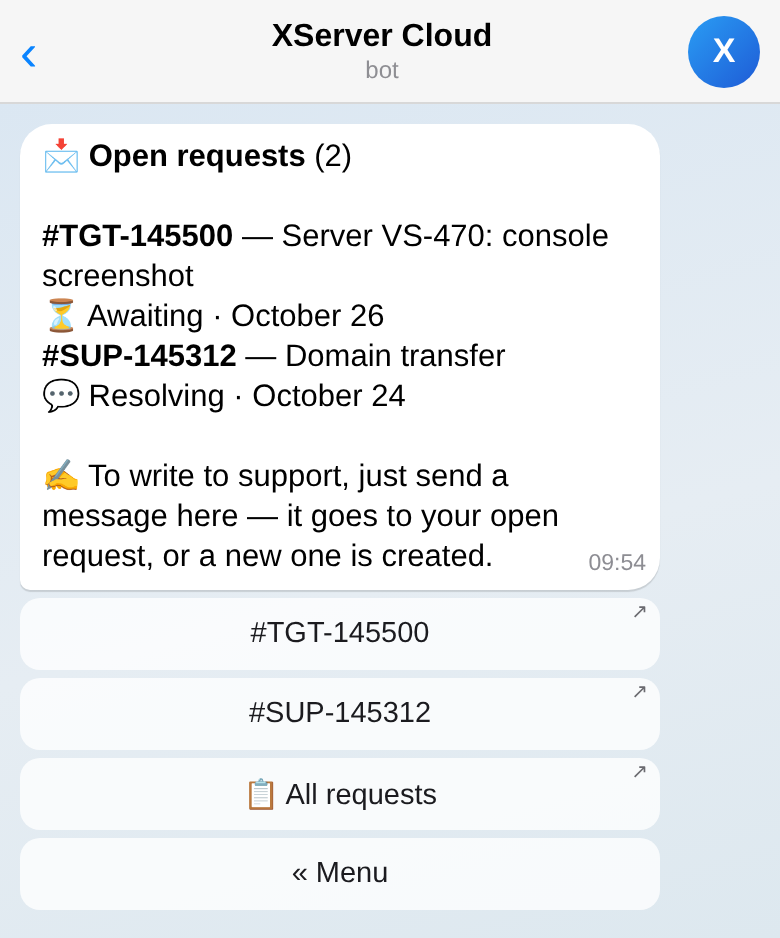
The bot's command menu has a command for each server, for example /vs_12345 with the hostname and IP as a hint: start typing /vs and Telegram shows your servers. Typing @XServerCloudBot and part of a name, hostname, IP or note in the chat with the bot finds the server and opens its card. Names in the server list are links; one tap opens the card. The /servers, /billing, /requests, /settings and /help commands open their screens.
The bot speaks the account's language, English, Ukrainian or Russian; the language is changed in the bot's settings and applies to the panel and emails as well.
Who can do what
The bot works only in a private chat. In a group, commands with account data do not answer, and a button in a forwarded message does nothing.
Permissions are the same as in the panel. A team member sees and can do exactly what their role allows: no server permission, no list; no support permission, no requests. If you belong to several teams, /team switches the account the bot works in. Every tap re-checks the account, the permissions and the management switch, so an old button in the chat history opens nothing extra.
How to connect
- In the panel open Settings → Notifications and press Link Telegram; a chat with the bot opens, press Start.
- There, tick which notifications to receive in Telegram: monitoring, payments, support.
- If you want to manage servers from the chat, turn on Management from Telegram in the Telegram card. Viewing does not need it.
You can unlink at any time, in the panel or with the /unlink command in the bot. If Telegram is your second factor for signing in, the bot first asks you to change the method.
What's next
We are thinking about a mini app inside Telegram. If something is missing for you, tell the bot: the message goes to support like any other.