
Moving a server without fear: the story of reloca.to

Why a customer puts up with hosting they are unhappy with
A five-year-old server is scarier to leave than to tolerate. The disks are slow, the price stopped matching the market a while ago, support takes a day to answer, and the customer stays anyway. To them, a move looks like surgery without anaesthesia.
Such a server runs a system that was installed under the previous admin. Fifty packages, a dozen services, cron jobs, certificates, firewall rules, databases, websites, a couple of home-grown scripts in /opt and settings nobody remembers any more. Nobody has a complete list.
The classic move looks like this:
- Order a new server and install a clean OS on it.
- From memory and old notes, restore everything that was on the old one.
- Copy the data, rewrite the configs for the new paths, disks and interface names.
- Switch DNS and catch everything that did not come up.
- Take calls for another week: "this used to work".
It eats evenings and weekends, and every forgotten detail surfaces on the production server. The downtime is unpredictable: an hour was planned, half a day it took. Rolling back is no longer an option either, because the data has diverged in the meantime.
So "don't touch it" looks like the rational decision. The old server works. A move needs time that nobody has and knowledge that left with the previous admin. And nerves cost more than the difference in price. That fear holds a customer tighter than any contract.
We have watched this for years from both sides: when customers left us and when they came to us. The only difference was who stayed up that night.
How we approached it ourselves
We had this pain of our own. XServer customers move between our data centres, from virtual machines to dedicated servers and back, from old hardware to new. An engineer did every such move by an internal article, "Cloning physical servers": boot both machines into our Live OS, dump the partition table, run partclone over the network, set up a chroot, rebuild the initramfs, reinstall grub, fix the network. Thirty to sixty commands on two machines, and the order matters.
The main thing we took away from those moves: there is no need to reinstall the system. Linux is made of filesystems, a bootloader and a few configs that hold the names of disks and network cards. If you carry the filesystems over whole and fix only what is tied to the old hardware, the system carries on as if nothing happened. Packages, settings and the forgotten scripts in /opt come along, and nobody has to write a list for that.
Second: there is only one truly fatal mistake in this procedure, wiping the wrong disk. Everything else can be fixed. So when we decided to turn the article into a tool, protection against that mistake became the main requirement. The old server is only read; nothing is written to it. Before the first write the tool prints what is on the disk now and makes you type its name and size from the screen. Before the reboot it checks that the system will boot, and without a green verify it will not let you reboot.
That is how the article became one command on the new server. The engineer no longer keeps the order of steps in their head, and the log of the move can be shown to the customer.
Why we gave it to customers
At first the tool was purely internal: both machines are ours, both boot into the Live OS over the network from the panel, an engineer runs the command. But the move that matters most looks different. The old server sits at another provider, and its owner is exactly the customer who would like to move but is afraid to.
The tool does not care where the old server is: it needs two machines in the Live OS and a network between them. A new server at XServer gets the Live from the panel with one menu item. What remained was to learn how to boot someone else's server into the Live, with no panel and no PXE of ours. Two ways came out of it. From a running system, one command downloads the Live and reboots the server straight into it through kexec, bypassing the BIOS and the boot order. Where kexec does not work, there is an ISO image for the provider's console or a VPS panel.
From there the decision suggested itself. If fear is what keeps people from moving, the tool that removes it should be in the customer's own hands. We registered the reloca.to domain, put the installer there, wrote the guide in three languages, and give the tool away for free to everyone who moves to us.
There is a practical side too. Every move with an unusual layout or an old OS makes the tool better for the next one. We use the same version we give to customers.
What reloca.to is and how it works
reloca.to moves an installed Linux server from one machine to another over the network. For the duration of the move both machines are booted into XServer Live OS, a small system that lives in RAM and does not touch the disks. You ssh into the new server and run one command with the address of the old one:
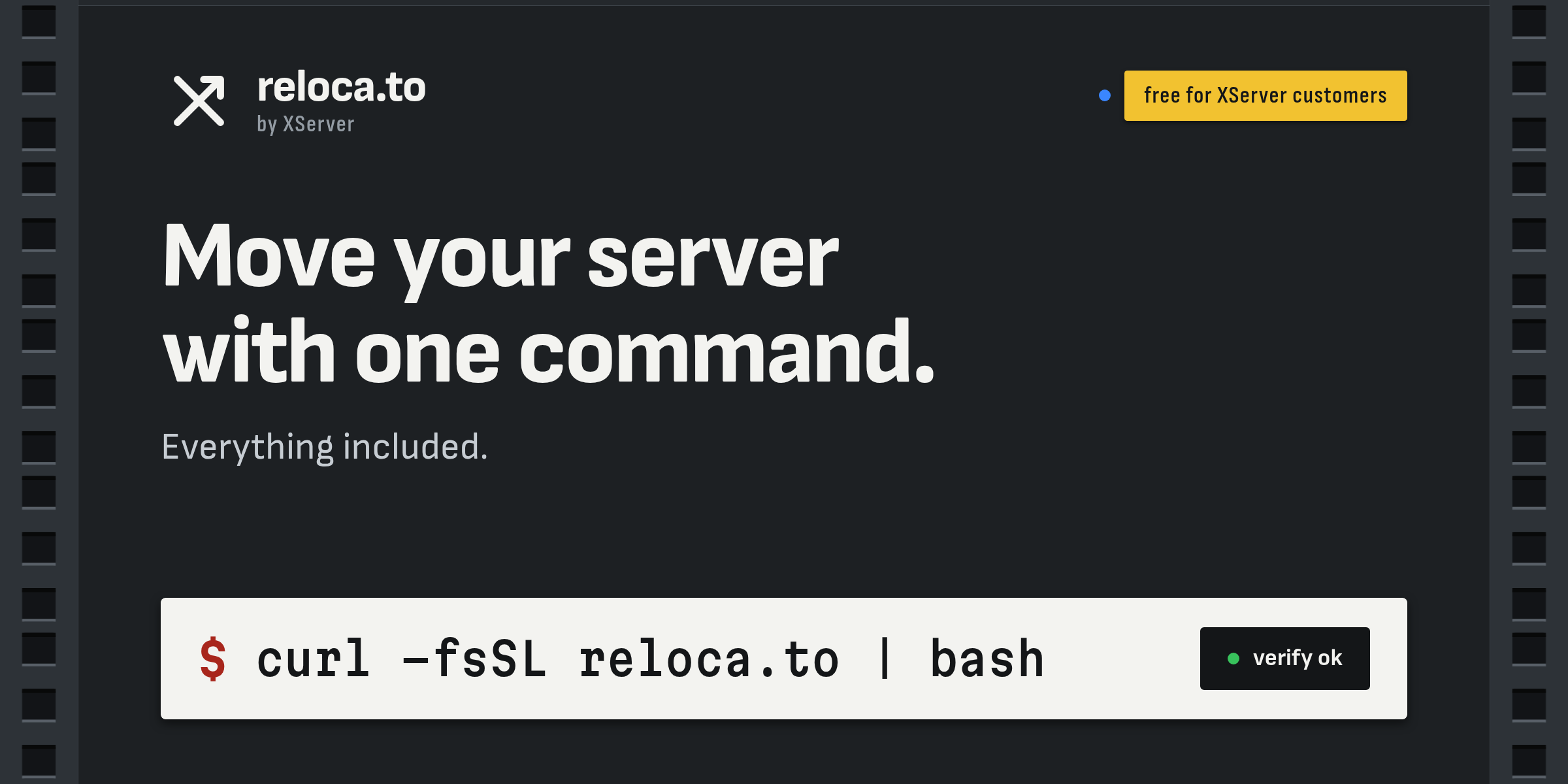
curl -fsSL reloca.to | bash
reloca.to 10.0.0.12
The tool names the old server source.reloca.to and the new one destination.reloca.to, so the shell prompt and every log line show where you are. Then it goes through seven phases, and each can be run on its own.
- Inventory. On both machines it records disks, partitions, md RAID, LVM, filesystems with their features, fstab, kernels, the bootloader and the network.
- Plan. The two inventories become a text file: how to lay out the new disk, what to copy block by block and what file by file, which UUIDs to keep, what to fix in fstab and the network. You can read and edit the plan before anything is written, and a dry run with
reloca.to -nshows it and every command without touching anything. - Partitioning. Before wiping a disk the tool prints its model, serial number, size and what is on it now, and asks you to type its name and size from the screen, for example
sda 894. A reflexive "y" cannot pick the wrong disk. Only then are the partitions, swap and filesystems created, with the same UUIDs, labels and feature sets as the source. - Transfer. Volumes stream over the network through partclone or tar, compressed, over an encrypted channel, with progress and an ETA. The tool lives in tmux: a dropped ssh session costs nothing, and a failed volume is retried on its own.
- Fix-up. In a chroot on the new server it edits fstab, mdadm.conf, the initramfs with the drivers of the new controller, grub for BIOS or UEFI. The main network interface is renamed to eth0 and the old MAC is replaced with the new one. Every edit goes into the log as a diff, and the originals are kept.
- Verify. Before the reboot the tool checks that the boot entry points to an existing kernel and initrd, the initramfs has the needed modules, fstab resolves, the filesystem features match, and the network is configured. If something is off, it exits with code 3 and says plainly: the disk is written, do not reboot, fix first.
- Cutover. The old server leaves the network or powers off, and the new one reboots into the migrated system. This happens only after a green verify.
Downtime equals the time of the transfer: from half an hour to a few hours depending on the amount of data. All that time the old server sits in the Live with its disks untouched. If something goes wrong, you simply reboot it into the old system and everything keeps working as before.
What the tool never does:
- Never writes to the old server: no fsck, no resize. It stays your rollback.
- Never wipes a disk before you have read what is on it now and typed its name and size.
- Never formats with defaults: every filesystem is created with the source's features and verified right after mkfs.
- Never reboots the new server without a green verify.
- Never touches the other disks of the new server: they are read-only while it works.
Which moves it is for
- From another provider to XServer. The most common case: the old server at the other provider boots into the Live with one command or from the ISO through the console, the new one gets the Live from the panel. Then one command, and the same server runs at our place.
- From a virtual machine to a dedicated server, when the VPS has outgrown itself and needs real hardware. The plan builds the layout for a single disk or a hardware RAID volume. If the new server has two identical disks and no controller, the
-o raid=1option builds a software mirror out of them, installs the bootloader on both and adds mdadm to the system if it was not there. - From a physical server to a virtual machine, when the old hardware is due for retirement and the load has long fit into a VPS. Software RAID becomes a single disk, UEFI becomes BIOS or the other way round, the bootloader is reinstalled by itself.
- From software RAID to a hardware controller. The md arrays are read already assembled; on the new side they become plain partitions on the controller's volume, and fstab and mdadm.conf are fixed.
- From old hardware to new with disks of a different size. A bigger new disk: the root grows. A smaller one: if the data fits, the root is copied file by file into a fresh filesystem with the same UUID and features, and the bootloader notices nothing. For example, the old server has a 2 TB disk with 150 GB used, and the new one has 1 TB.
- Between our data centres. What the tool was made for in the first place: both machines in the panel, both boot into the Live over the network, no ISO and no kexec.
The result is the same in every case: the same system, with the same packages, configs, services and UUIDs, on new hardware. Only what has to change does: controller drivers, the bootloader, the network interface name and the MAC.
What is supported
| What | Supported |
|---|---|
| Source OS | Debian 10–13, Ubuntu 18.04–26.04, CentOS 7–10, Rocky / Alma / RHEL 8–10 |
| Source layout | md RAID of any level, LVM, LVM on md, plain MBR and GPT partitions |
| Filesystems | ext2/3/4, XFS; swap partitions, LVs and swap files; ESP |
| New server | any XServer server, dedicated with a hardware RAID, a single disk, two disks as md RAID1, a VPS |
| Firmware | BIOS → BIOS, UEFI → UEFI, UEFI ↔ BIOS either way |
| Disk size | the new one bigger or smaller than the old one |
| Network | ifupdown, netplan, systemd-networkd, ifcfg, NetworkManager; the interface becomes eth0 |
Not supported: btrfs, ZFS, LUKS and NTFS, CentOS 6 and other grub-legacy systems, SUSE. For Windows we have a separate tool. If your case is not in the table, write to us before the move: some of these cases are handled by hand alongside the tool, and some become its next feature.
Where to start
- Order a server at XServer and boot it into the Live OS: client panel → server → boot menu → Live OS. The panel sets the root password; the address stays.
- Boot the old server into the Live. From a running system, as root, one command is enough: the script takes the address, gateway and DNS from the main interface, downloads and verifies the Live, and reboots straight into it through kexec. A minute later the server is back on the same address as source.reloca.to; the root password is printed before the reboot.
If kexec is not available (Hyper-V, Azure, some network cards), attach the image reloca.to/live.iso through virtual media or the VPS panel and pick full in the menu.curl -fsSL reloca.to/live | bash - Ssh into the new server with agent forwarding, install the tool and look at the plan in a dry run first. It fetches the missing packages by itself.
ssh -A root@NEW-SERVER curl -fsSL reloca.to | bash reloca.to -n OLD-IP # dry run: the plan and every command, nothing is written reloca.to OLD-IP # the full move - Keep the console of the new server open during the cutover: the first boot is visible only there.
The full guide by phase, the options and the exit codes are at reloca.to. If the layout is unusual, the OS is old or the verify failed, write to XServer support. We will sort the move out together: the old server stays untouched meanwhile, so there is nothing to lose.